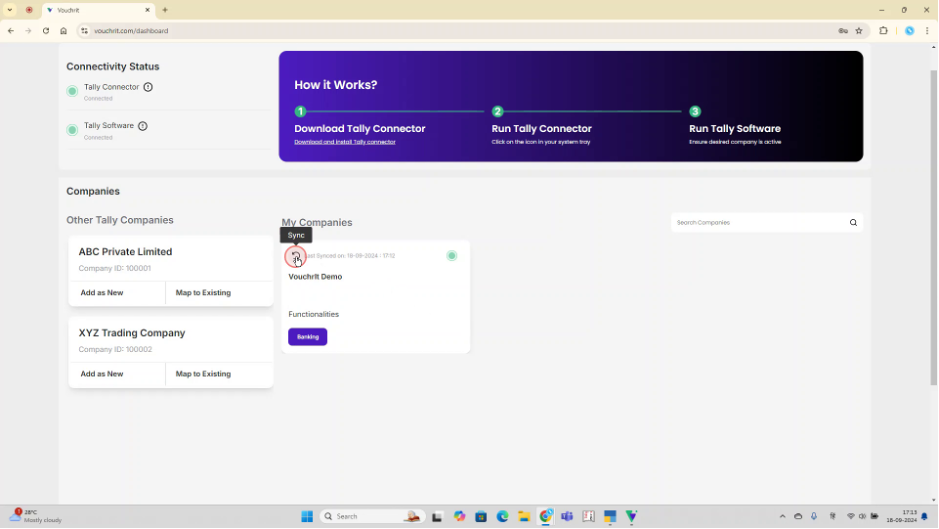
This blog provides a detailed guide on how to set up your system for using VouchrIt to create accounting entries in Tally software. This is the one-time setup that you need to do. Follow the steps outlined below to ensure a seamless integration between VouchrIt and Tally once you are login to the system.
Step 1: Download and Install the Tally Connector
To get started, you have to download Tally Connector. Click on the top right button "Download Tally Connector"
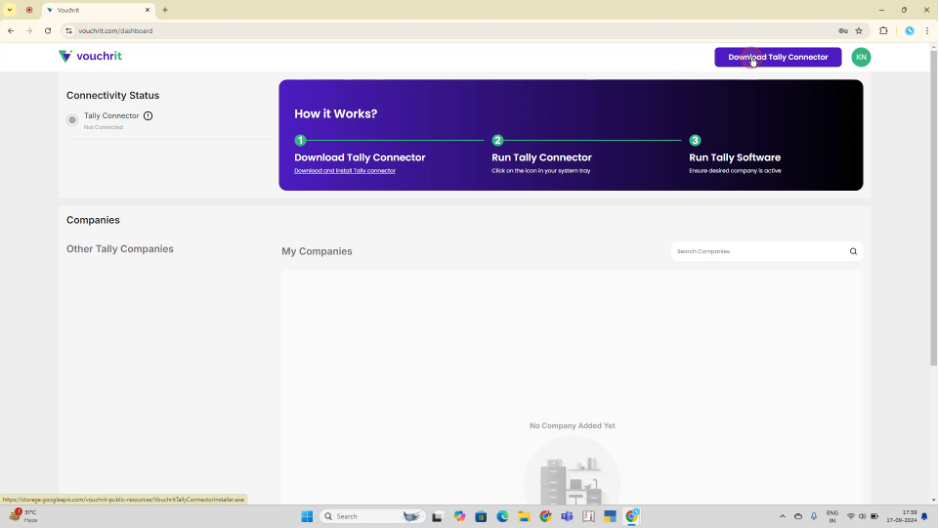 Once the file is downloaded, click on it and proceed with the installation. If the system requests any necessary approvals, grant them. It is recommended to create a desktop shortcut for easier access in the future.
Wait for the installation to complete.
Once the file is downloaded, click on it and proceed with the installation. If the system requests any necessary approvals, grant them. It is recommended to create a desktop shortcut for easier access in the future.
Wait for the installation to complete.
Step 2: Run the Tally Connector
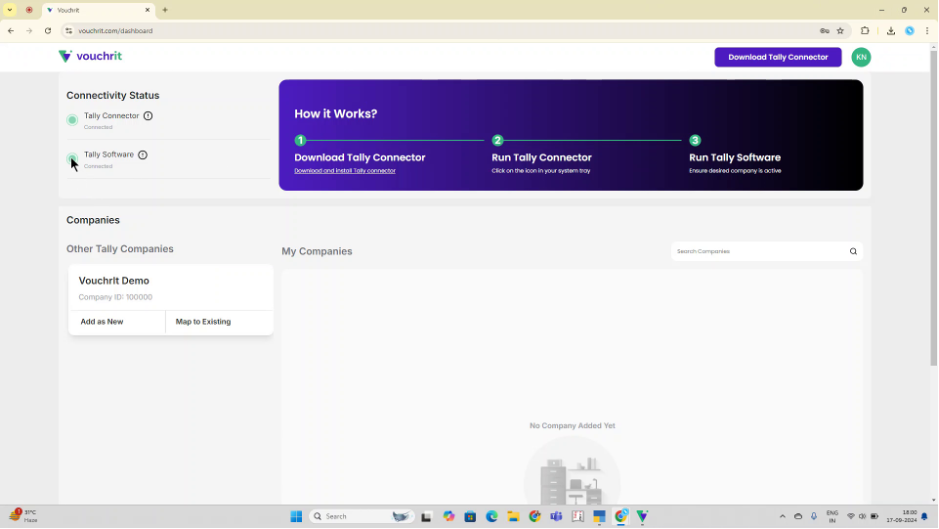
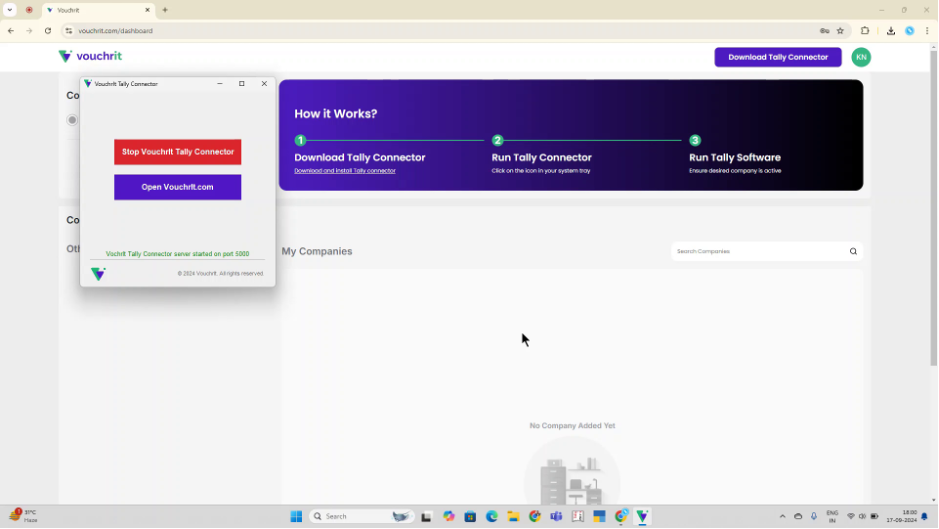 Once you start the Tally connector, In the connectivity status section, the Tally connector status should now display a green signal, indicating it is running properly.
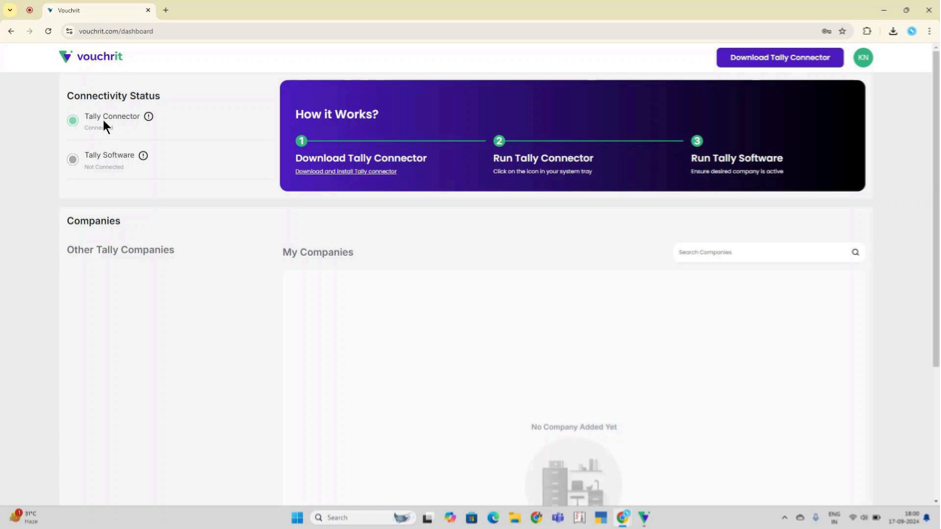
Step 3: Run the Tally Software
Depending on whether you use Tally Prime or Tally ERP, start the appropriate Tally software. Once opened, the connectivity status corresponding to Tally software should also turn green, indicating successful connection with VouchrIt.
Step 4: Load Companies from Tally to VouchrIt
To connect your Tally companies to the VouchrIt platform, start by opening Tally and loading the desired companies. Once you've done this, your loaded companies will then appear in the VouchrIt platform.
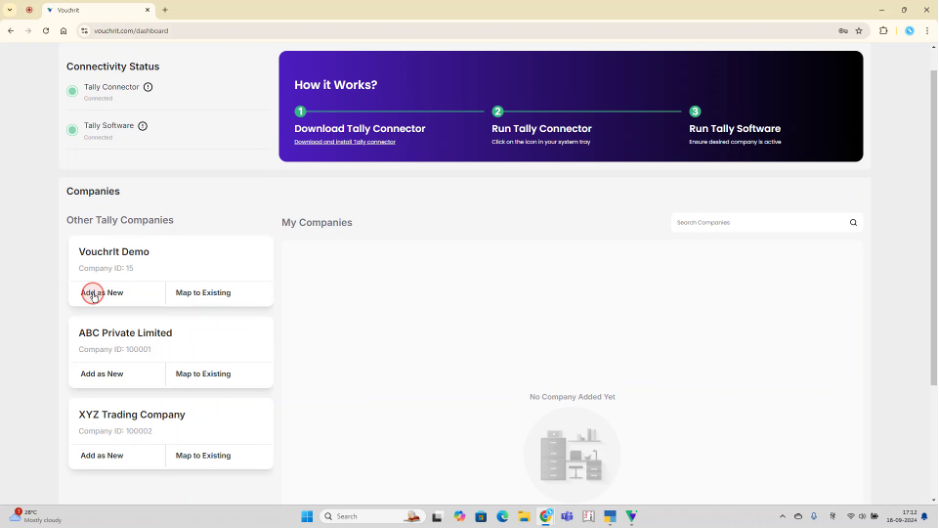
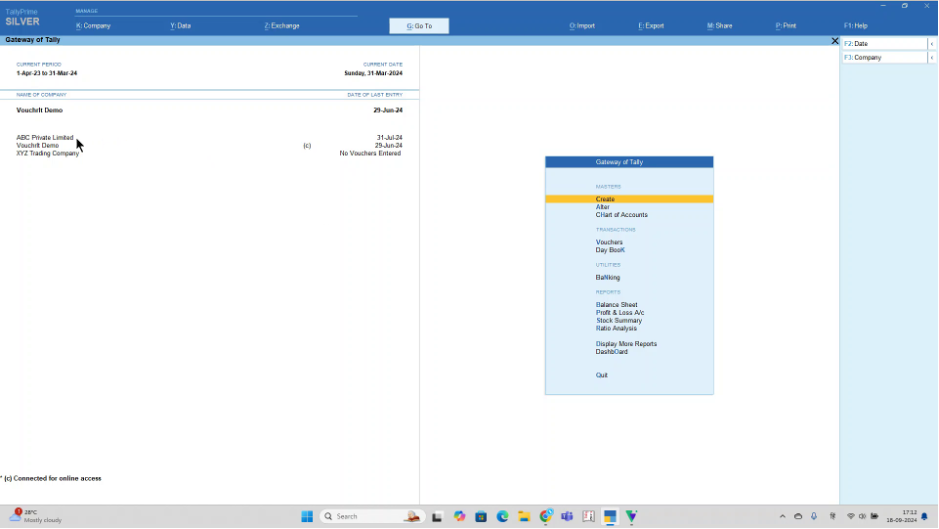 Now, switch to the VouchrIt platform. Companies that are not yet added to VouchrIt will appear on the left side under the "Other Tally Companies" section. Here, you can see the same three companies from Tally.
Step 5: Add the Company
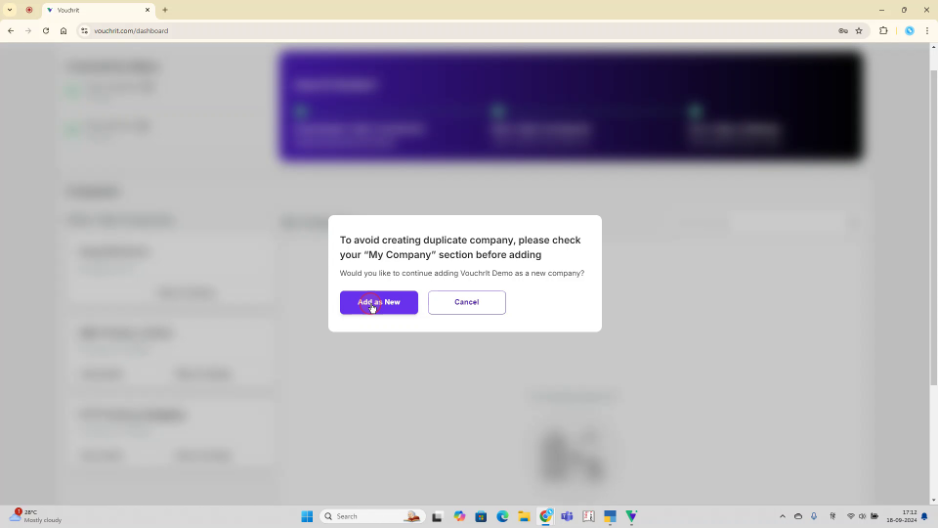
In the "Other Tally Companies" section, click on "Add as New" and confirm that the company does not already exist in the "My Company" section. The company will then be successfully added to the platform.
Note: The company you work on should be active in Tally
Step 6: Sync Ledger Master (optional)
Once the company is added, the corresponding ledger masters will also be synchronized automatically. If you make any changes to the ledger master after adding the company to the VouchrIt platform, simply click on the sync arrow button to update the changes on the VouchrIt platform and the company data will be successfully synced.